Bot Profile Settings
The Bot Profile page is the ultimate branding tool for your server. It allows you to completely transform Clover's visual identity and presence to make it look and feel like your community's very own custom bot.
 Premium Feature
The Bot Profile configuration tab is completely exclusive to Clover Premium subscribers. Free users will use the standard global Clover bot identity.
How to Access
- Login to Clover Dashboard.
- Select your server from the server list.
- Select the Bot Profile tab from the tabs list to open the page.
Selecting Your Server
At the very top of the page, you will find the Select a server dropdown menu.
- Use this to transfer your premium bot subscription to any server you want.
- Next to the dropdown is a quick Invite Bot button, which you can use if you need to invite your customized bot directly to your server.
Visual Identity
This section allows you to change the graphical elements of your bot's Discord profile.
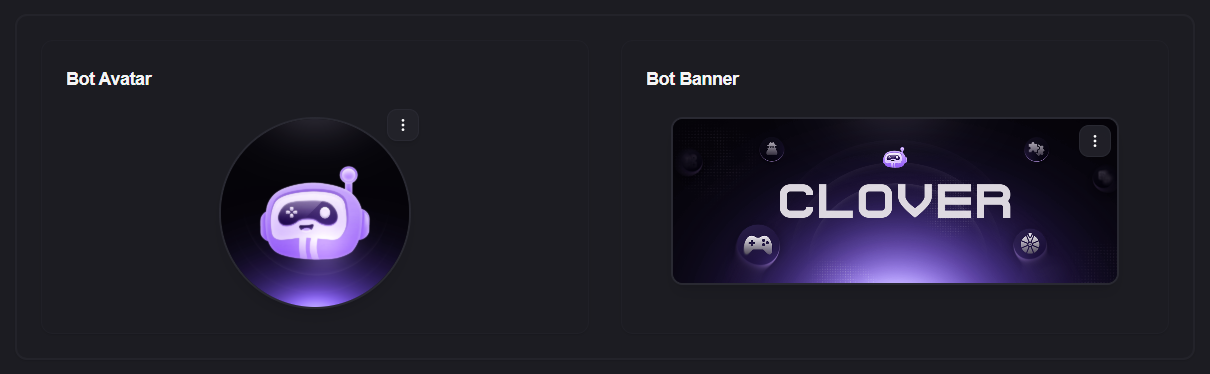
- Bot Avatar: Click on the avatar circle to upload a custom profile picture for your bot.
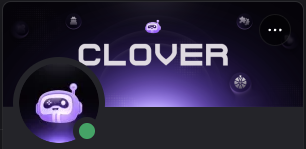
- Bot Banner: Click on the banner rectangle to upload a custom background banner that will appear whenever a user clicks on the bot's profile in Discord.
Profile Details & Presence
Give your bot a custom name and dictate exactly what its status message says!
- Bot Name: Type in your desired display name for the bot (for example, renaming it from standard Clover to "Clover Premium" or your own server's name).
- Bot Status: Choose the bot's online indicator color. You can set it to Online (Green), Idle (Moon), or dnd (Do Not Disturb - Red).
- Bot Activity Type: Select the prefix for the bot's status message. For example, you can set it to Playing, Watching, Listening, or Competing.
- Activity Content: This is the custom text that appears right after the Activity Type. For example, if you type "Best Games" while the type is set to PLAYING, the bot's Discord status will read: Playing Best Games.
Using your server's logo as the Bot Avatar and setting the Activity Content to something like "Playing with [Your Server Name] Members" is a fantastic way to make your community feel premium and unique!