Dashboard Overview
The Overview page is the command center for your server's Clover bot. It provides a real-time snapshot of your server's engagement, player activity, and overall bot statistics in one clean interface.
How to Access
- Login to Clover Dashboard.
- Select your server from the server list.
- Select the Overview tab from the tabs list to open the page.
Server Statistics & Metrics
At the top of the page, you will find quick-glance stat cards that summarize Clover's presence in your server:
- Member Since: The exact date Clover was invited to your server.
- Bot Messages: The total number of messages sent by the bot in the last 30 days, giving you an idea of how active the games are.
- Games Channels: The total number of text channels currently authorized and configured to run Clover.
- Server Membership: Displays your server's current subscription tier (e.g., Normal or Premium
 ).
).

Player Engagement
This section helps you understand how much your community is interacting with the bot.
- Active Players: Shows the exact number of unique members who have played at least one game recently. It also calculates your Players Engagement Rate against your total server member count (e.g., 6%).
- Leaderboard King: Highlights the top-performing player in your server right now, displaying their Discord avatar, username, and total accumulated points.

Analytics & Charts
Clover provides beautiful, easy-to-read charts to track your community's gaming habits over time.
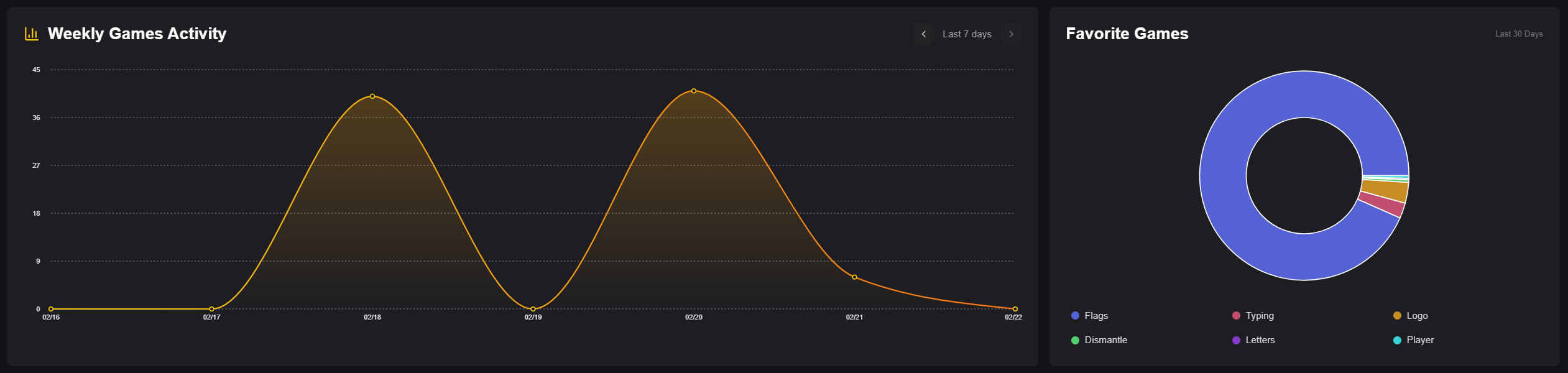
- Weekly Games Activity: A line chart displaying the volume of games played over the last 7 days. Use this to identify which days your server is most active.
- Favorite Games: A donut chart showing a breakdown of the most popular games in your server over the last 30 days (e.g., Flags, Typing, Logo, Dismantle). This helps you know which games your community loves the most!
Quick Navigation
At the bottom of the Overview page, you'll find quick-access cards to dive deeper into configuring Clover:
- ⚙️ General Settings: Manage custom prefixes, embed colors, bot language, and global role permissions.
- #️⃣ Channels Settings: Enable or disable specific games per channel, and assign channel-specific roles and languages.
- 🎮 Games Settings: Customize specific mechanics for multiplayer games, such as start messages and max player limits (Some features require Premium).
- 🤖 Bot Profile: Manage your bot's custom identity, including its name and avatar (Premium Only 💎).